Background Remover
Use our AI background remover to remove backgrounds from images online. Download transparent cutouts for product photos, portraits, and designs.
Up to 10 images per batch · 1 credit per image
More images? Open the workspaceRemove Background From Images
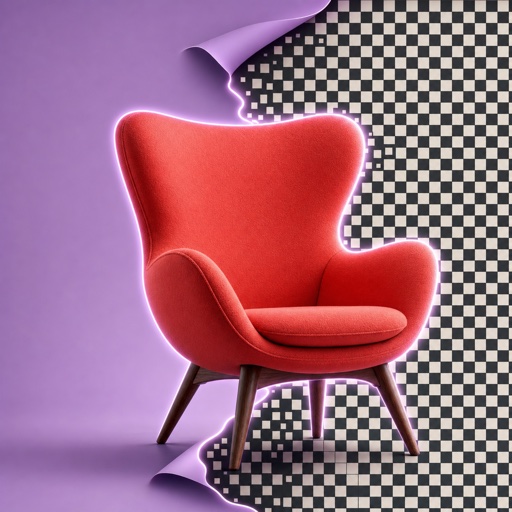
The background remover separates the main subject from its surroundings and creates a transparent cutout. Download it for a new color, photo, or layout. Adding a white background or a new scene is a separate editing step.
Remove BackgroundPut Your Cutout To Work
See how a background remover prepares subjects for product listings, portraits, and graphic designs. These examples show what you can make with further editing.

Product Listings & Campaigns
Remove backgrounds from product photos for clean listings, then reuse the cutouts in campaign layouts.

Portraits & Profile Designs
Keep the person and change the setting for a speaker poster or a team profile.

Graphics You Can Reuse
Remove the background around an illustration and reuse it in invitations, slides, or collages.
How To Use The Background Remover
Remove backgrounds in three steps: upload, submit, and download. No prompt needed.
- 01
Upload Your Images
Choose one image or a batch of up to 10. Use a clear source with the whole subject in frame.
- 02
Remove Backgrounds
Sign in, check the total credits, and submit. Each image costs 1 credit and produces its own result.
- 03
Check And Download
Open each result to inspect the edges, then download the transparent cutout for your next design.
Why Use Our Background Remover?
Finish a quick task on this page, or use the workspace when you have more images to process.
On This Page
Upload, Preview, Download
Use the background remover right on this page. Preview each result, inspect the edges, and download your cutout without opening a separate editor.
In The Workspace
Work Through A Larger Collection
For more than 10 images, open the background remover workspace and continue in batches of up to 10. Each image still costs 1 credit.
Background Remover FAQs
Answers about downloads, batch size, credits, and image quality.
Will my image have a transparent background?
Yes. EzNanoBanana removes the surrounding background and produces a transparent cutout of the subject. A white or colored background must be added separately.
Can I remove backgrounds from more than 10 images?
Yes. This page accepts up to 10 images per batch. For a larger collection, open the background-removal workspace and continue in batches of up to 10. The 10-image limit applies to each submission.
How much does the background remover cost?
Background removal costs 1 credit per image. A batch of 10 images costs 10 credits. Check your available credits before submitting.
Can I use the background remover for free?
Yes. New users receive 50 free credits after signing up and signing in. Use them to try the background remover at 1 credit per image: up to 50 images if all credits go toward background removal. The credits expire after 30 days and are a useful starting point for hobby projects.
Can the background remover handle hair or glass?
Hair, fur, glass, and other translucent details can be difficult, especially against a similar-colored background. Use a clear source and inspect the result at full size. Try light and dark backgrounds in your design to spot missing details or leftover edges.
Can I replace the background with a new scene?
Background removal creates a transparent subject; it does not generate a new scene. To add one, use the background changer in the EzNanoBanana workspace as a separate editing step.
Do I need an account to remove a background?
Yes. Sign in to submit a background-removal task and use your account credits.
More Than Background Removal
Need to create a source image, edit a composition, or turn a finished image into video? Continue with these tools.
AI Image Generator
Create a product, character, or visual concept before preparing a transparent asset.
Generate an image
Image To Image AI
Change style, lighting, scene, or composition while preserving the source foundation.
Transform an imageImage To Video AI
Use a prepared subject or finished composition as the opening frame for a new motion sequence.
Animate an image
Remove Background From Your Image
Try the AI background remover and download your image with a transparent background.
Upload an image